Log in to the platform
This section presents information on how to login as a registered user and as a guest user. You will also get to know how to reset the password and upgrade to a paid version if you are using the guest version.
Login as Registered User
You can login to the platdorm in the following ways:
-
Using the User Login Credentials
-
Using the UAE PAss
If you have a registered account, you will receive a username and password from your admin organization.
Registered User
You may have received the login credentials from your admin organization. Use these login credentials to login.
To login as a registerted user, do the following:
-
Open a browser and type the URL of the platform.
-
Type or copy-paste the user credentials in the respective fields and then click the Login button.
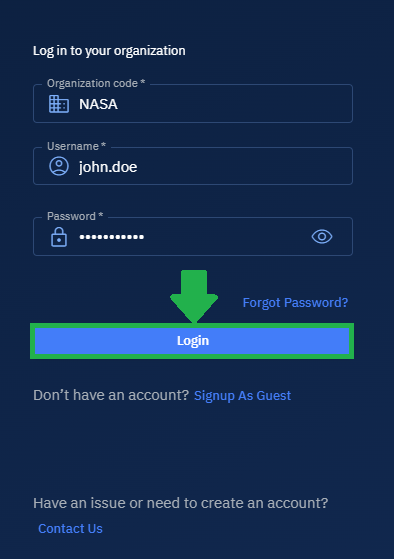
The platform enforces you to change the pass you received from the admin when you log in for the first time.
- Change the password and get started with using the platform.
UAE Pass
As a citizen and resident of the UAE, you can use the UAE Pass - a the national digital identity for citizens, residents, and visitors - enabling you to access various government and private sector services with a single account.
To login with UAE Pass, do the following:
-
Open a browser and type the URL of the platform.
-
Click the Login with UAE Pass button.
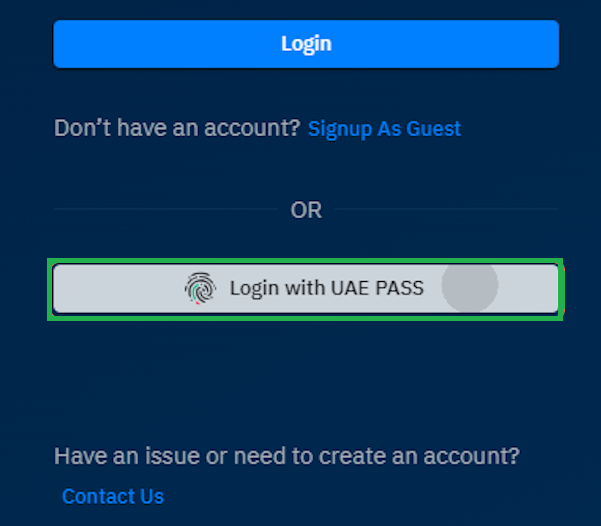
The UAE Pass login page is displayed.
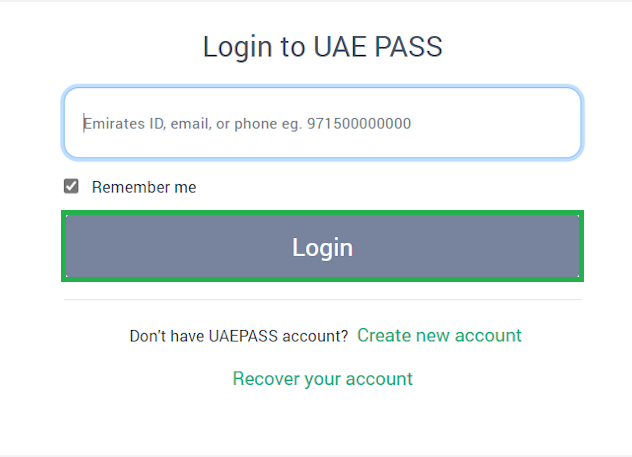
- On the UAE Pass login page, do one of the following:
- Type the Emirates ID Number
- Type the Email ID used for UAE pass registration
- Type the UAE phone number with the country code
- Click the Login button.
Login as Guest Account
A guest account is the most easiest way to explore the platform without a subscription. It is perfect ideal for first-time users and students who want to evaluate geospatial tools, view satellite imagery, or test basic workflows using free data sources. You can sign up and start using the platform with a guest account in just a few steps.
As a guest user, you can access a limited set of modules and tools:
| Module | What You Can Do |
|---|---|
| Explore | View satellite layers and interact with map data. |
| Workspaces | Create and manage your own geospatial projects. |
| Acquire | Place image orders from free satellite providers (e.g., Landsat, Sentinel-1, Sentinel-2). |
| Orders | View and manage your past image acquisition requests from free vendors. |
| Tasks | Run analysis tasks on your workspace data. |
| Notifications | See system updates and alerts. |
| Help | Access user documentation and platform guidance. |
| Change Language | Choose your preferred language. |
| Profile Management | Update your profile and change your password. |
As a guest, you are not permitted to place orders with paid vendors or access certain advanced features.
Signing Up as a Guest
-
Go to the login page of the platform.
-
Click the Signup as Guest link.
-
Type your email address.
-
Select the Sign Up button.
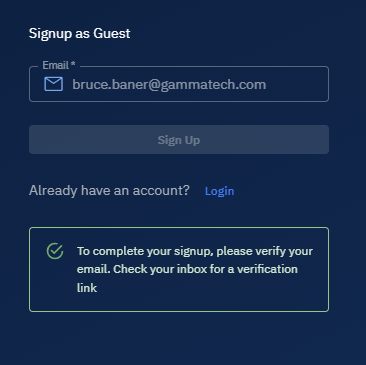
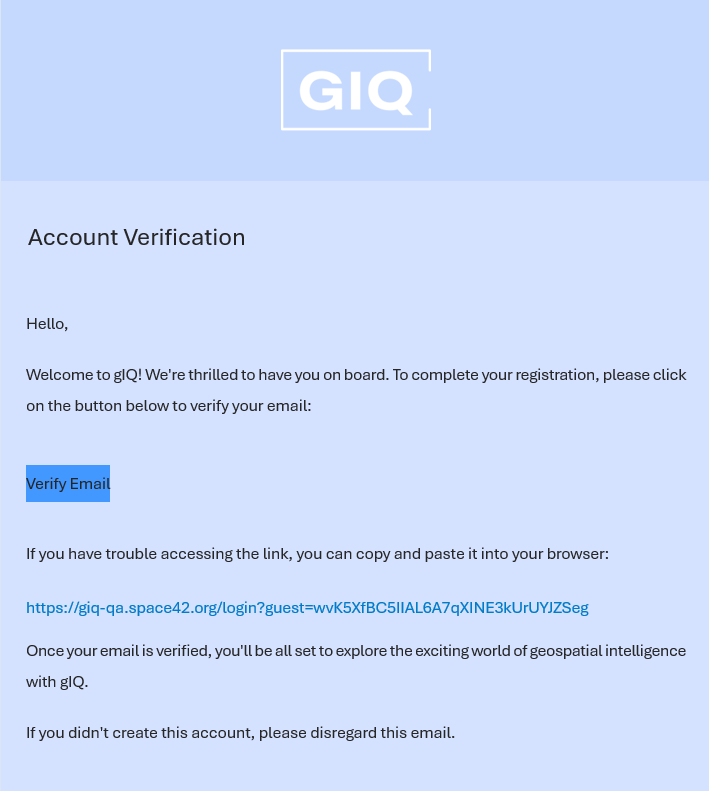
You will receive a verification email with a secure link in your inbox. This link is valid for a limited time only.
Receiving the Guest Username and Password
- Go to your inbox and open the email from the platform.
- Click the Verify Email button - a secure link - to confirm your email address.
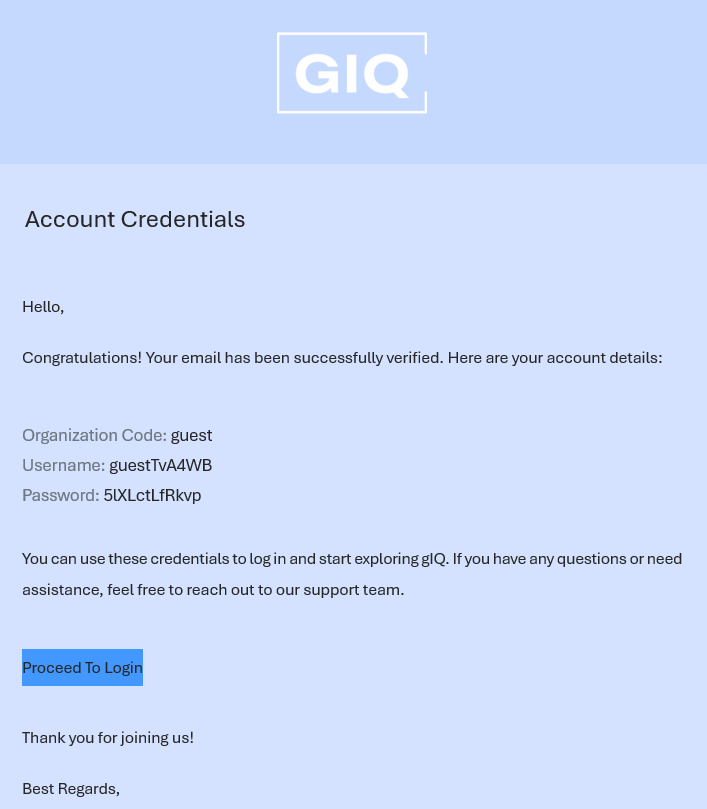
After successful verification, you will receive a second email containing your guest username and password in plain text.
Signing in as Guest
-
Use the guest user credentials received in the email.
-
Open the browser and type the URL of the platform to access it.
-
Type or copy paste the guest user crediti Click the Proceed to Login button to login to the gIQ platform.
-
In the Web browser, type or copy paste the account credentials, and then click the Login button.
Resetting Your Password
If you forget your password:
- On the login page, select Forgot Password.
- Enter your email address.
- Follow the instructions in the email to set a new password.
To ensure account security, all passwords must meet the following requirements:
-
Must have at least 12 characters long
-
Contain both letters and numbers (alphanumeric)
-
Include at least one special character (for example: @, #, $, %)
-
Include at least one numerical character
-
Include at least one uppercase (capital) letter
Upgrading to a Paid Account
To upgrade your guest account to a paid account:
-
Contact the platform support team directly.
-
Self-service upgrade is not available within the UI.
Next Steps
-
Access the Profile sub-module to verify out your current user and the permissions.
-
If you are the Primary User (Super Admin), verify that you can access the Users and Roles sub-modules.
-
If you are the Secondary User, verify that you can access the modules required for your day-to-day work.